Green, Fleeting On
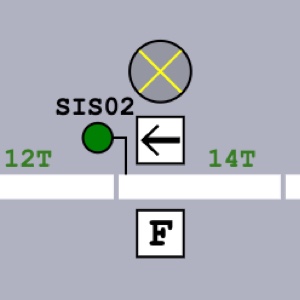
There is a route set and fleeting is enabled.
Green, Fleeting Off
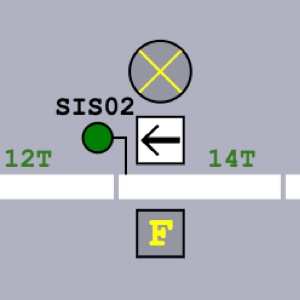
There is a route set but fleeting is disabled.
Red, Fleeting Off
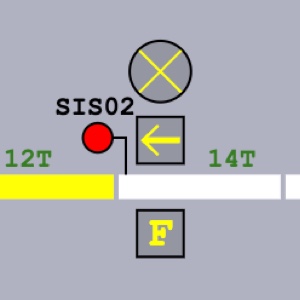
There is no route set.
Simulation of the old ATS, SSI and SACEM systems of the Istanbul Metro
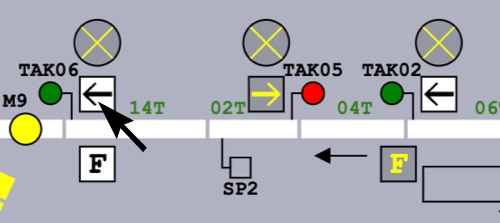
Signals are displayed on the mimic diagram as shown below.
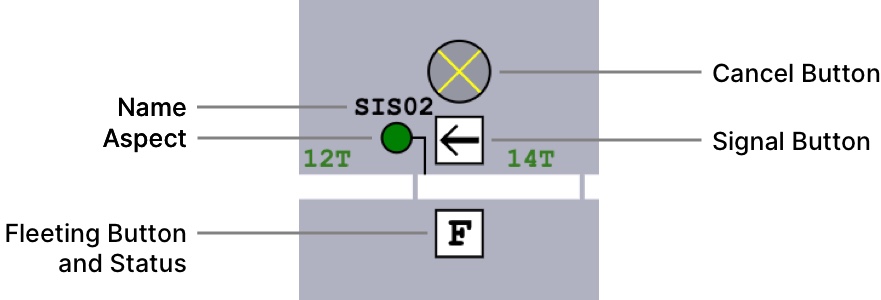
Depending on the situation, a signal and its buttons may be shown with different colors.

The signal's aspect may be as following:
There is no route, stop.
There is a train route, passing the signal is allowed.
Unlike most signalling systems, the signal will turn green as long as there is at least one track circuit with a subroute on it. The ATC will continue to supervise the train movement.
There is a shunting route, expect stop at the next shunting panel, passing the signal is allowed.
The route has been cancelled and is inside the safety timer. A cancelled route will be completely removed after 60 seconds has passed.
This aspect is special to the ATS, and is shown as red on the physical signals.
If the signal is closed and fleeting is off, the signal button will display a gray background with a yellow arrow. Otherwise, the background will be white and the arrow black.
Route setting functions are accessed via this button.

Fleeting allows the same route to be set for all trains automatically to reduce the workload of the dispatcher. Only some signals have this function.
If fleeting is disabled, the fleeting button will display a gray background with a yellow F letter. Otherwise, the background will be white and the F letter black.
Fleeting functions are accessed via this button.
This button is used to cancel a route.
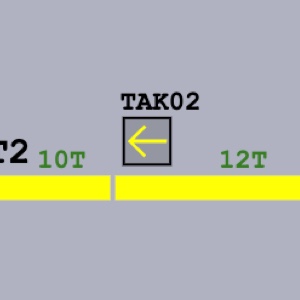
Sometimes, the target signal of a route may not be on the same mimic diagram as the start signal. In this case, a target button is placed.
It has the same functionality as a signal button and is displayed with a thinner arrow.
There is a route set and fleeting is enabled.
There is a route set but fleeting is disabled.
There is no route set.
Click the button of the start signal. The button will start to blink.
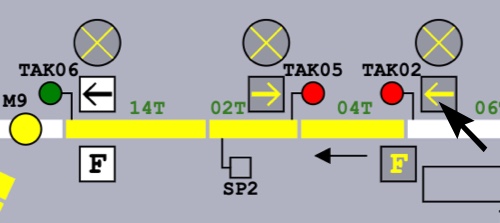
Click the button of the target signal.
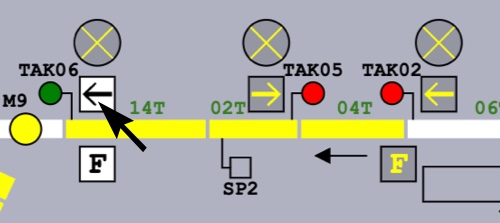
The interlocking will check for any conflicting routes and occupancies.
If there aren't any, the points will be moved automatically as needed and the signal will display the green aspect.